Apple TV+ offers a convenient offline download feature, allowing users to download movies and TV shows for offline viewing, perfect for times without internet access. The article provides a step-by-step guide on downloading content on iPhone, iPad, Mac, and Apple TV.
Lost Your Connection Mid-Movie? Don't Worry, Apple TV+ Has You Covered!
Have you ever been in the middle of watching a great movie on your phone when suddenly, the dreaded "buffering" wheel appears? Or maybe you're about to embark on a trip and don't want to miss the latest episodes of your favorite series. Well, fret no more! Apple TV+ has the perfect solution for you. With their offline download feature, you can enjoy high-quality movies and shows anytime, anywhere, even without an internet connection. Let's explore how it works!
Apple TV+ - Your Gateway to Limitless Entertainment
Apple TV+ is a streaming platform boasting a vast library of exclusive movies and series, all with stunning picture and sound quality. And besides its impressive content library, Apple TV+ offers a super convenient offline download feature. This means you can download your favorite movies and TV shows directly to your device and watch them whenever you want, even if you're on a plane, train, or anywhere with limited internet access.
Step-by-Step Guide to Downloading Movies & TV Shows on Apple TV+
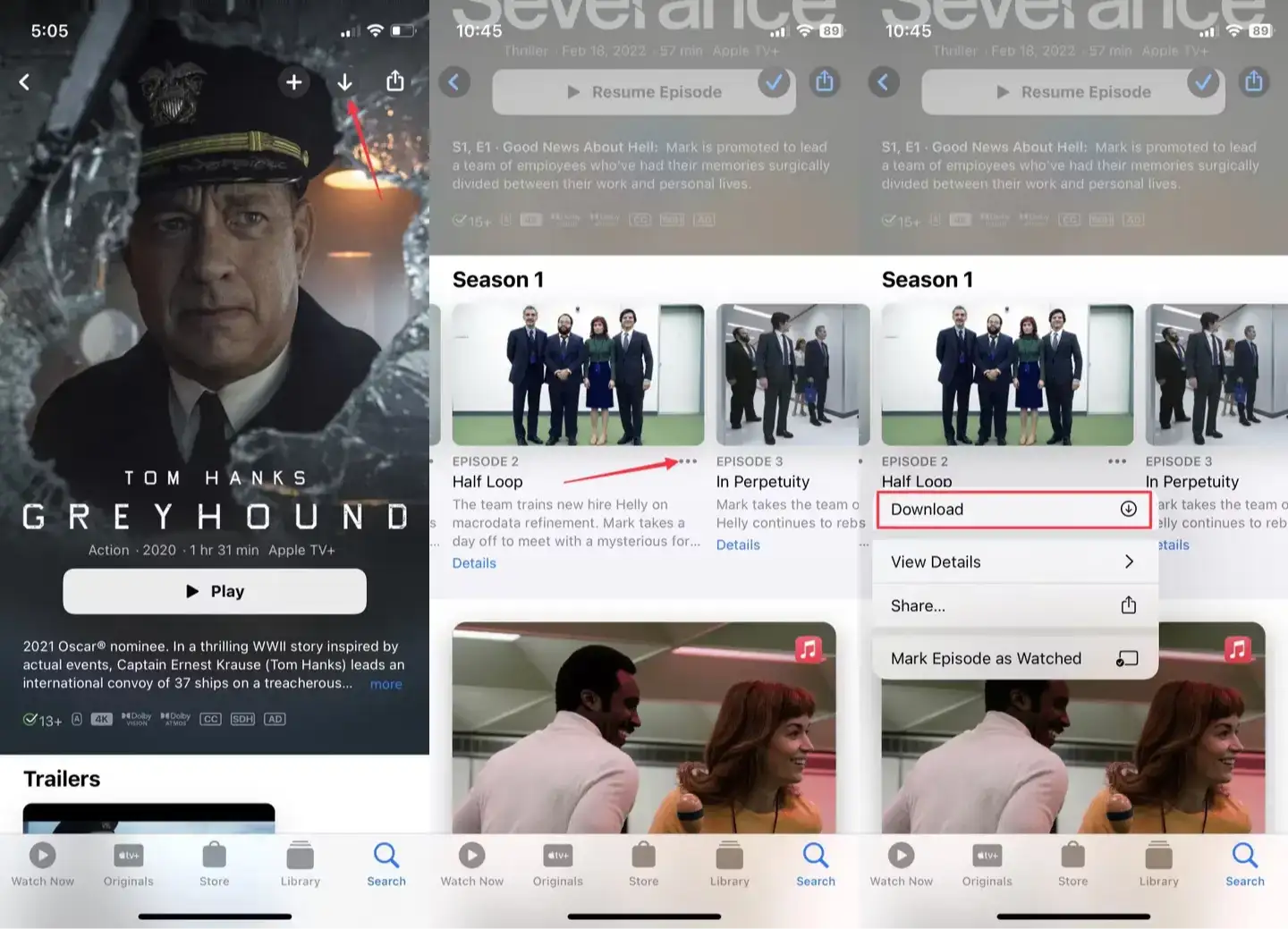
On iPhone/iPad:
- Open the Apple TV app.
- Find the movie or show you want to download.
- Tap the downward arrow icon next to the Play button.
- Choose your preferred video quality and tap Download.
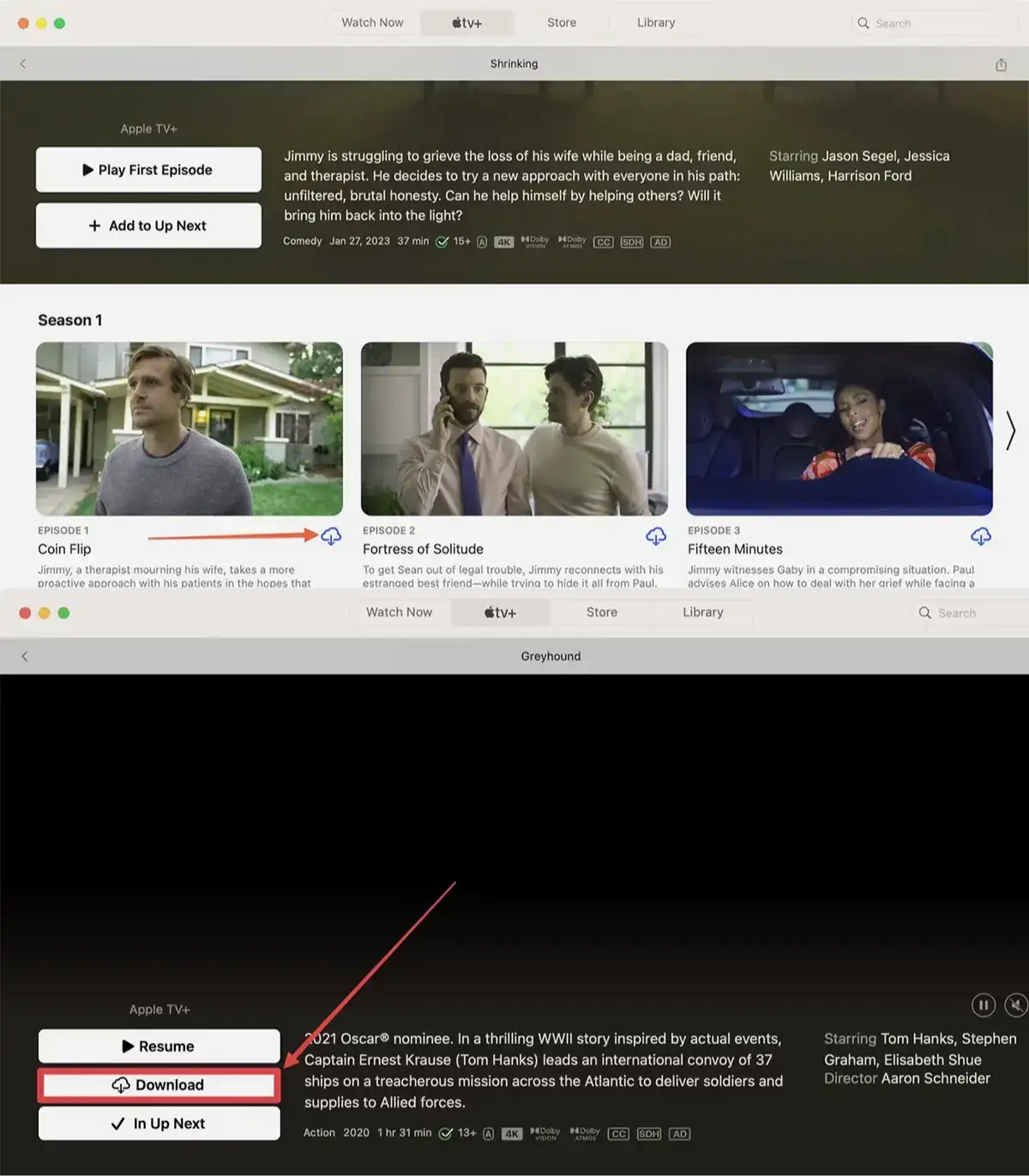
On Mac:
- Open the Apple TV app on your Mac.
- Find the content you want to download and click the cloud icon.
On Apple TV:
- Open the Apple TV app on your device.
- Find the content you want to download and press the three-dot icon.
- Select Download.
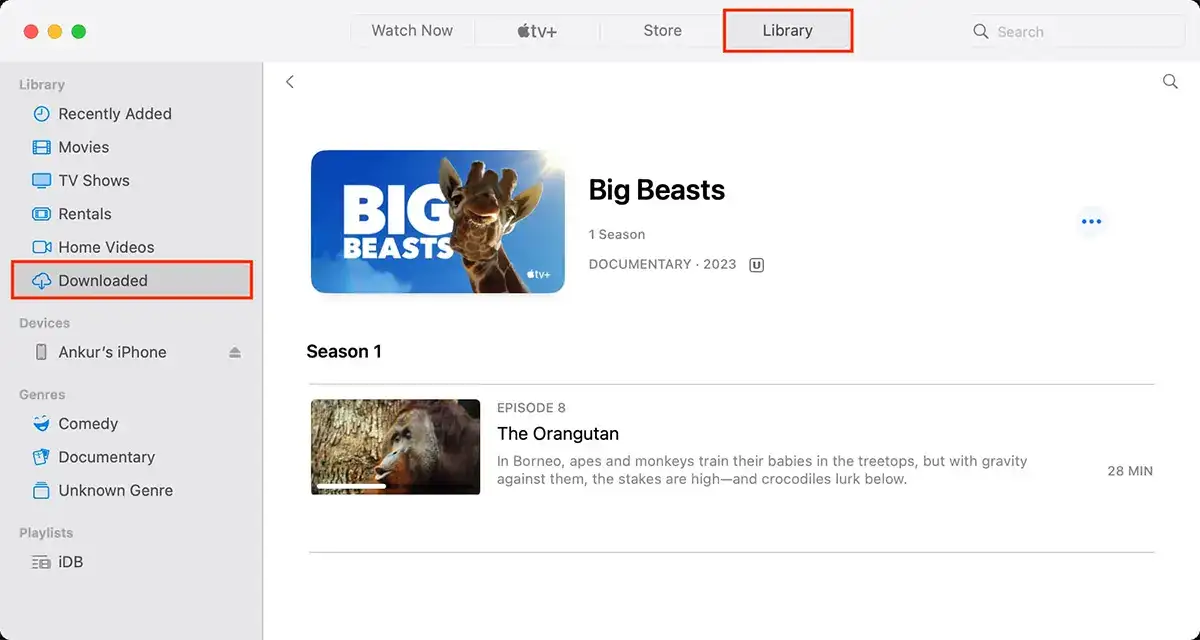
Access and manage your downloads
After you download a show on any of your devices, you’ll find it in the Library section of the TV app. When you’re ready to watch, just select your show and enjoy. You can swipe left on a downloaded item on an iPhone or iPad and tap Delete. On Mac, click the three dots icon and choose Delete from Library.
Things to Keep in Mind When Downloading
- Device Limit: Each Apple ID can only download content on a certain number of devices.
- Viewing Period: Downloaded content may be removed from your device after a certain period if you don't connect to the internet.
- Storage Space: Make sure your device has enough storage space for the downloaded movies and TV shows.
Tips for the Best Offline Viewing Experience
- Download Using Wi-Fi: To save mobile data, download content while connected to a Wi-Fi network.
- Prepare Before Traveling: Make a list of movies and series you want to watch and download them before your trip.
- Use Headphones: For the most immersive and realistic audio experience, connect headphones to your device.
- Delete Watched Content: Once you're finished watching, delete downloaded movies and TV shows to free up space on your device.
Frequently Asked Questions about Offline Downloading on Apple TV+
- Can I download all movies and shows on Apple TV+?
Not all content on Apple TV+ is available for offline viewing. This depends on Apple's licensing agreements with content providers. However, most Apple TV+ original movies and shows support this feature.
- How do I delete downloaded content from my device?
To delete downloaded content, go to your library, select the content you want to delete, and tap the cloud icon. Then, choose "Remove Download" or "Delete from [device name]".
- If I change devices, will my downloaded content be synced?
Currently, Apple TV+ does not support syncing downloaded content between devices. You will need to re-download the content on your new device.
- Is the video quality of downloaded content the same as streaming online?
The video quality of downloaded content is generally equivalent to the video quality you select when downloading. However, the final display quality may depend on your device's specifications.
- Can I watch downloaded content on multiple devices simultaneously?
No, each device can only play downloaded content once. If you want to watch the same content on multiple devices, you will need to download the content on each device.
- If I cancel my Apple TV+ subscription, will my downloaded content be deleted?
If you cancel your Apple TV+ subscription, you will no longer have access to any content, including downloaded content.
- How do I know how much storage space my downloaded content is taking up?
You can check the storage space used by your downloaded content by going to the settings of the Apple TV+ app on your device.
- Why can't I download certain movies or shows?
There could be several reasons why you are unable to download certain movies or shows, such as the content not being available for download, your access being restricted, or an issue with your internet connection.
- How can I save storage space when downloading content?
To save storage space, you can choose lower video quality when downloading. Additionally, you can delete movies or shows that you have already watched.
- If I download a multi-part movie, can I download each part separately?
Yes, you can choose to download individual parts of a movie or show.
Ready to explore the world of limitless entertainment with Apple TV+? Download the app today and start enjoying your favorite movies and TV shows!